HELPFUL HINTS
CSS Sites

w3schools.com
This awesome website contains heaps of information about how to use CSS, and the various parts within it.
The part I found really helpful was the CSS Properties section, which gives information on every single little property, like colour, background, and even border. With each one having its own individual page, it gives you a definition, an example and its usage, which for a beginner, is so so helpful if other resources aren't making sense!
They even have a try-it-yourself option, so if you're really confused, you can try it with them! Everything is so easy to find, and even easier to use!
CSS Wizardry
Creating a Centered Horizontal Navigation
While playing around creating a website using HTML and CSS, I wanted to maky my navigation bar horizontal, rather than appearing as a list.
I wanted to do this only because it looks classier and easy to find, and I wanted the home page of my website to be compact and simple.
I googled 'how to make your navigation horizontal, and this website showed up. It was so so easy to understand, and all I had to do was add a class onto my navigation, then reference to it in my CSS, and set the text-align to center.
It was very direct, and didn't contain any information that I didn't need, only instructions for how to get something working. I found it extremely helpful, and it added a whole other dimension to my website.


CSS Wizardry
Creating a Centered Horizontal Navigation
While playing around creating a website using HTML and CSS, I wanted to make my navigation bar horizontal, rather than appearing as a list.
I wanted to do this only because it looks classier and easy to find, and I wanted the home page of my website to be compact and simple.
I googled 'how to make your navigation horizontal, and this website showed up. It was so so easy to understand, and all I had to do was add a class onto my navigation, then reference to it in my CSS, and set the text-align to center.
It was very direct, and didn't contain any information that I didn't need, only instructions for how to get something working. I found it extremely helpful, and it added a whole other dimension to my website.
Image Caption on Web Pages
While creating a website for part of our portfolio, I wanted to enter a vertical image, and have it almost centered under the horizontal one. When I entered the image, due to other CSS use, it was far over on the right, and I didn't want it so far over.
This website was extremely helpful in providing the syntax to be able to achieve this, by putting the photo and its caption in separate cells of a one-column table.
All I had to do after entering the correct syntax around the picture was to give the table a class, and reference that class into my CSS.
This was so so helpful in giving me the desired result, and it didn't contain any useless information - it all made complete sense, and the visual Dalmatian pictures allows you to see what its going to look like!

w3schools.com
After playing around creating a website, I wanted to try and add something like little icons or pictures, to make it more interesting.
This page teaches you how to include an icon, like a cloud or a heart, in your webpage, and also teaches you how to change the size and the colour.
It tells you what webpage to link to, to allow you to effectively enter the icons, and the 'Try it Yourself!' option is awesome so you can get the hang of doing it yourself!
Its so easy to find too: just google CSS Icons, or click the link at the top of this box to go right to the page! Its such an awesome way to easily add fun and youth to your future pages!


Templated
When creating a website, I wanted to use pre-made CSS to help me with my styling and also to give me inspiration for the future.
If you search free website templates in Google, this website comes up, with hundreds of free website templates that come with CSS already attatched.
I found it really easy to choose and download, and once I had gotten to grips with the CSS, it was an awesome way to help me style my page. It looks amazing and classy, and was so helpful for future inspiration!
It was a really good way to help with this website, and I would totally recommend this website for anyone because of all the template options you can choose from!


Website Setup
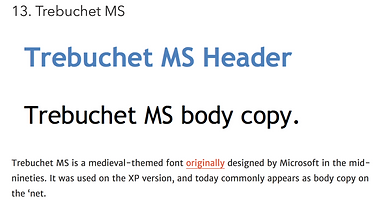
I wanted to use a different font that the default for for the browser, but I wanted one that was going to be available in all browsers.
I found this website through google, and it tells me about 15 different fonts that are user-friendly on all browsers, and look really classic while doing it!
Personally, I really like the Bookman and the Trebuchet, because they are a slightly more modern take on the old fonts, like Times New Roman.
Its also really easy to find through google - web safe fonts will bring up a link for this page.

The Site Wizard
How to make your Links change colour when a mouse hovers over it
For links, I find it very user-friendly when they change colour when your mouse touches them, because it shows me they are links.
This site was awesome in teaching me how to set this property, by using the a:hover {} tag.
I also really like how this site also talked about if you wanted to make one specific link change colour when its hovered over, rather than all the links. This would be particularly useful in a long page, to identify something important